
If your Samsung Smart TV home screen is cluttered with apps you never use while your favorites are buried three menus deep, you’re not alone. Learning how to add apps to Samsung Smart TV home screen setups properly can transform a cluttered, frustrating interface into a clean, personalized hub where everything you actually watch is one click away. This guide walks through the entire process step by step, along with troubleshooting tips for when things don’t go as expected.
Why Customizing Your Home Screen Matters
Before diving into the steps, it’s worth understanding why this matters beyond simple tidiness. The Samsung Smart Hub — the interface you see when you press the Home button — is designed to surface your most-used content quickly, but its default layout often prioritizes Samsung’s own recommendations over your actual habits. Knowing how to add apps to Samsung Smart TV home screen layouts properly means you can prioritize your own most-used services instead of scrolling past suggestions you’ll never click.
This customization offers a few concrete benefits:
- Faster access to frequently used streaming or gaming apps without searching each time
- A cleaner, less cluttered interface tailored to your actual viewing habits
- Reduced frustration for household members less familiar with TV navigation
- Better organization when multiple people share the same TV for different apps
Prerequisites Before You Start
A few basics need to be in place before you can successfully add or pin apps. First, your TV needs an active internet connection, since most app installations require downloading content directly to the TV. Second, a Samsung account is required to access the Smart Hub and app store — without one, you generally can’t download or manage apps at all.
If you haven’t set this up yet, you can create a Samsung account directly from your TV, or set one up in advance using a phone, tablet, or computer for a slightly easier typing experience. Once that’s confirmed, understanding how to add apps to Samsung Smart TV home screen menus becomes a much more straightforward process. how to set up a smart home
Step-by-Step: Installing a New App
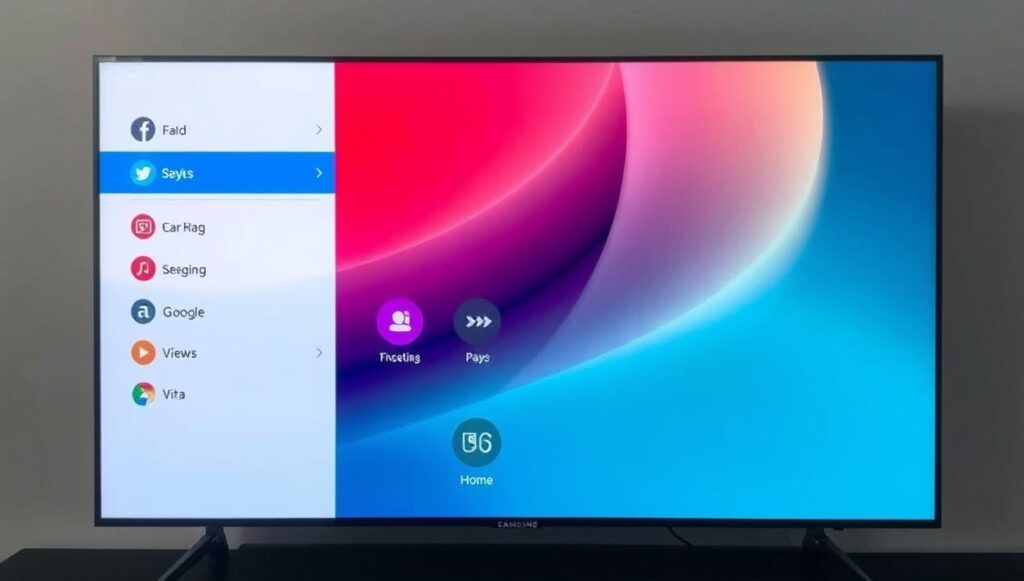
If the app you want isn’t already installed, you’ll need to download it first before it can be pinned anywhere. Here’s the general process:
- Press the Home button on your remote to open the Smart Hub
- Navigate left or down to the Apps section
- Select the Search icon (magnifying glass) in the top-right corner
- Type the name of the app you’re looking for and select it from the results
- Choose Install (sometimes labeled Download) and wait for the installation to complete
- Once finished, select Open to launch it, or return to the Home screen to pin it in place
This installation step is the foundation of how to add apps to Samsung Smart TV home screen setups, since an app generally needs to be installed before it can be pinned to a specific home screen location.
Step-by-Step: Pinning an App to Your Home Screen
Once an app is installed, adding it to your home screen for quick access involves a slightly different process:
- From the Home screen, navigate to the Apps row
- Select the Settings icon (small gear) in the upper-right corner of the Apps section
- Use the arrow keys on your remote to highlight the app you want to add
- Select Add to Home from the menu that appears
- The app will now appear directly in your Apps row on the home screen
| Step | Action | Button/Menu Used |
|---|---|---|
| 1 | Open Smart Hub | Home button |
| 2 | Navigate to Apps section | Arrow keys |
| 3 | Open Settings within Apps | Gear icon |
| 4 | Highlight desired app | Arrow keys |
| 5 | Confirm placement | Add to Home |
This exact sequence is consistently confirmed across Samsung’s own support documentation, making it the most reliable answer to how to add apps to Samsung Smart TV home screen questions across most current model years.
Rearranging Apps Once They’re Added
Simply adding an app isn’t the end of the process — positioning matters too, especially if you want your most-used apps front and center rather than buried at the end of a long row.
- Navigate to the app you want to move
- Press and hold Select on your remote
- Choose Move from the options that appear
- Use the arrow keys to reposition the app to your preferred location
- Press Select again to confirm the new placement
Repeating this for each frequently used app is a simple but effective part of mastering how to add apps to Samsung Smart TV home screen organization overall, rather than just adding apps randomly without any real structure.
Removing Apps You No Longer Use
Just as important as adding apps is knowing how to remove ones you no longer need, particularly since some default “recommended” apps clutter the home screen without being genuinely useful to you.
- Navigate to the app you want to remove
- Press and hold Select over it
- Choose Remove from the menu
- Confirm by selecting Remove again
It’s worth noting that certain recommended apps cannot be fully deleted, but they can still be removed from the home screen specifically, which keeps your layout clean even if the app remains technically installed elsewhere on the system.
Troubleshooting Common Issues
Even when following the steps correctly, a few common issues can trip people up when trying to figure out how to add apps to Samsung Smart TV home screen setups:
- App not appearing in the Apps list after installation – Try restarting the TV by holding the power button, or unplugging it for 30 seconds and plugging it back in
- “Add to Home” option missing – Confirm the app is fully installed rather than still downloading, and check for pending software updates
- App store not showing an app you expect – Some apps aren’t available on every TV model or region; check Samsung’s app compatibility for your specific model
- Persistent bugs after installation – Try deleting and reinstalling the app, which often resolves minor glitches
If none of these steps resolve the issue, checking for a pending software update is often the next logical step, since outdated TV firmware can sometimes interfere with proper app installation or the Add to Home function specifically.
Keeping Apps Updated Automatically
Once you’ve figured out how to add apps to Samsung Smart TV home screen menus, it’s worth also enabling automatic updates so you don’t have to manually manage each app individually going forward.
- Press Home to open the Smart Hub
- Navigate to Apps, then scroll down to App Settings
- Select Auto Update and toggle it to On
- Confirm the indicator turns blue, showing the setting is active
This small step saves ongoing maintenance time and ensures your apps stay current with security patches and feature updates without requiring repeated manual checks.
Locking Apps for Household Safety
If children or other household members share the TV, locking specific apps can prevent access to age-inappropriate content without restricting the entire TV.
- Navigate to Apps, then App Settings
- Select the specific app you want to restrict
- Choose Lock, which will require a PIN to open that app going forward
- The default PIN is typically 0000, though this should be changed immediately through Settings > General > System Manager > Change PIN
While this isn’t directly part of how to add apps to Samsung Smart TV home screen instructions specifically, it’s a closely related setting worth knowing once your home screen is organized to your liking.
Tips for a Cleaner, More Useful Home Screen
A few practical habits make a noticeable difference in day-to-day usability once you’ve learned how to add apps to Samsung Smart TV home screen layouts:
- Place your most-used streaming apps at the very front of the Apps row for instant access
- Remove default recommended apps you never use to reduce visual clutter
- Group similar apps together (streaming services, gaming apps, utilities) for easier navigation
- Periodically review and reorganize as your habits change over time
Using Voice Commands as a Shortcut
Many current Samsung Smart TVs support Bixby voice commands, which can simplify navigation for those who find remote-based menu diving cumbersome. Holding the microphone button and saying something like “Open Netflix” can bypass several manual navigation steps entirely, offering a faster alternative for accessing frequently used apps without needing to manually pin every single one.
While voice commands don’t replace the underlying process of how to add apps to Samsung Smart TV home screen setups for permanent organization, they’re a useful supplementary shortcut for quick, one-off access.
Final Thoughts
Customizing your Samsung Smart TV’s home screen doesn’t require technical expertise — just a clear understanding of the Smart Hub’s menu structure and a few consistent steps. Once you know how to add apps to Samsung Smart TV home screen setups properly, install, pin, organize, and remove apps as needed, you’ll have a genuinely personalized viewing experience that puts your favorite content front and center instead of buried under generic recommendations.
Frequently Asked Questions
Do I need a Samsung account to add apps to my TV?
Yes. A Samsung account is required to access the Smart Hub, download apps, and use most smart TV features, including pinning apps to your home screen.
Why isn’t the “Add to Home” option showing up for my app?
This usually means the app hasn’t fully finished installing, or your TV software needs an update. Confirming installation status and checking for updates typically resolves this.
Can I remove default recommended apps from my home screen?
Yes, though some recommended apps can’t be fully deleted from the system, you can still remove them from the visible home screen to reduce clutter.
How do I move an app to a different position on the home screen?
Highlight the app, press and hold Select, choose Move, use the arrow keys to reposition it, and press Select again to confirm the new placement.
Is there a faster way to open apps without pinning every one to the home screen?
Yes. Many current Samsung TVs support Bixby voice commands, letting you open apps directly by voice without navigating through pinned home screen icons.